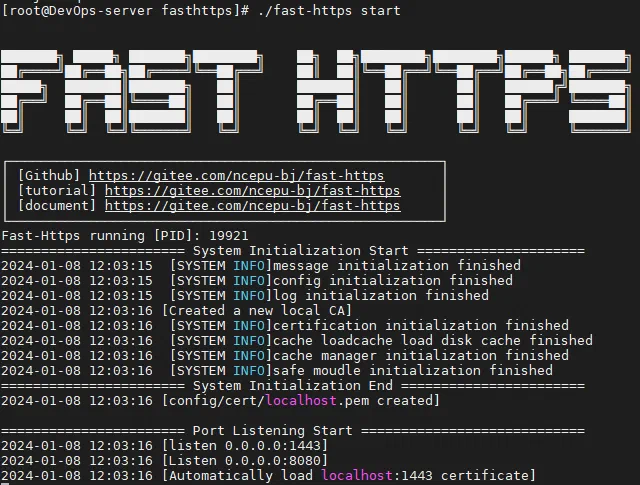
Publish a local static site
This walkthrough publishes a static site you already built, covering both Windows and Linux.
1 Get the software
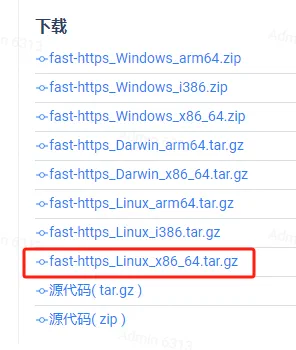
Download the package for your platform from the release page:
- Windows:
fast-https_Windows_x86_64.zip - Linux:
fast-https_Linux_x86_64.tar.gz

2 Windows setup
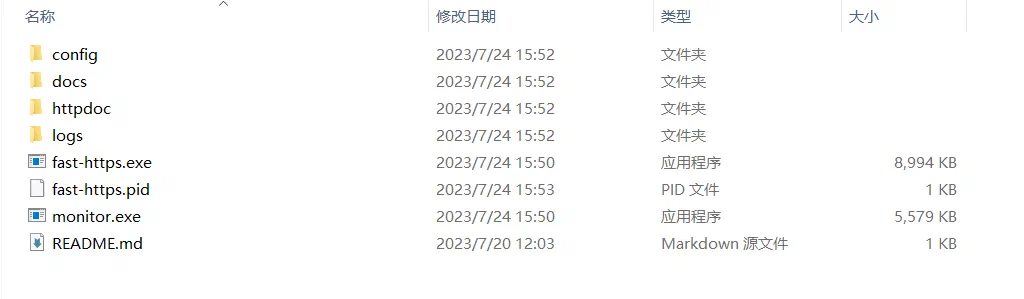
Unzip the package
Unzip the downloaded archive first:
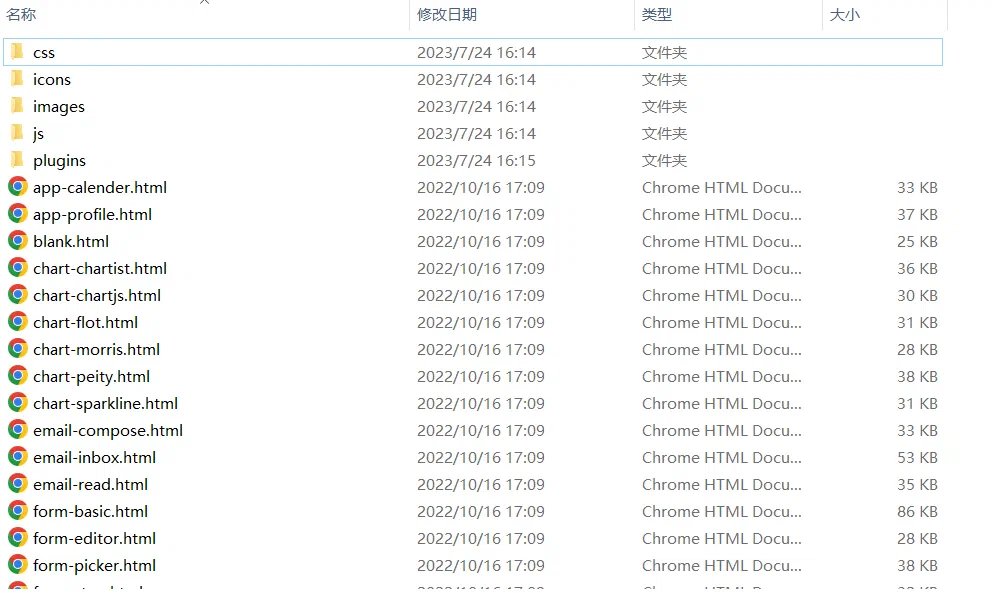
Put the static files in place
Copy your built site into the publishing folder (default ./httpdoc/root) and make sure it contains index.html:
Edit the configuration
Open fast-https.conf in the config folder and point root at your static folder:
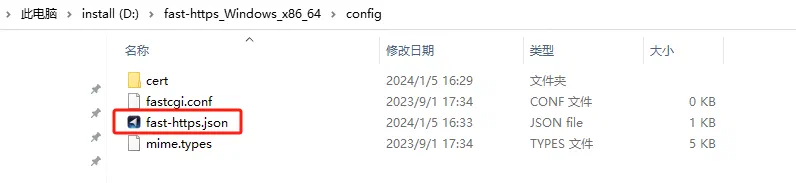
{
  "listen": 8080,
  "server_name": "localhost",
  "location": [
    { "url": "/", "type": "local", "root": "./httpdoc/root", "index": ["index.html", "index.htm"] }
  ]
}
Start the manager
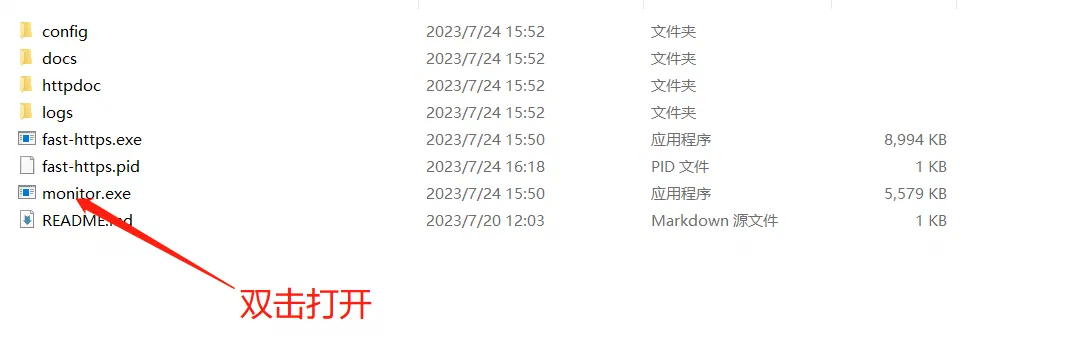
Run monitor.exe and start the service from the tray icon:
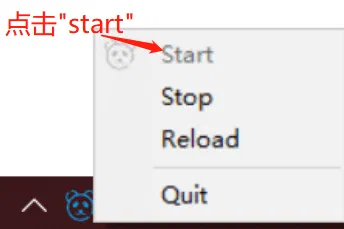
Open http://localhost:8080/index.html and the site shows up:

3 Linux setup
3.1 Upload the static files
Copy the static files into the publishing folder (default ./httpdoc/root):
3.2 Edit the configuration
Edit config/fast-https.json, set server_name to the server IP and confirm root points at the static folder.
$ cat ./config/fast-https.json
3.3 Start and test
$ ./fast-https
# or run it in the background
$ nohup ./fast-https &